
Install Bundleware locally
Bundleware is not in a store. Load it unpacked, from a build of this checkout or from a release ZIP.
npm ci                          # Node 24 or later
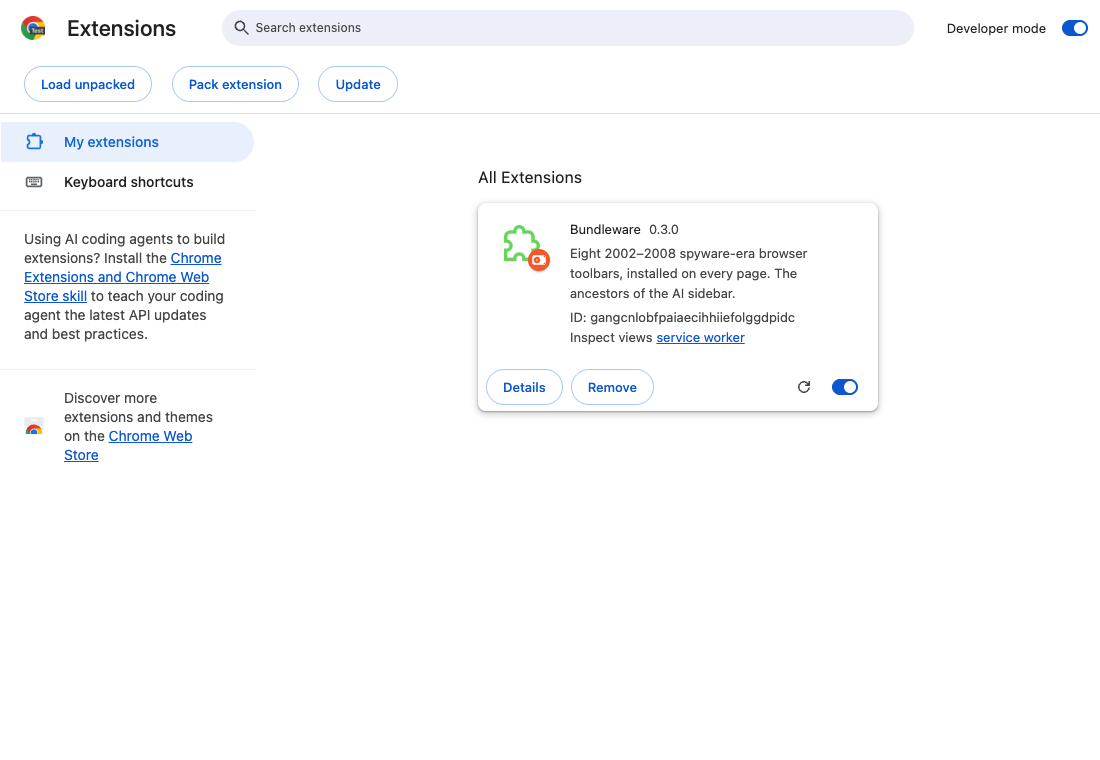
npm run build # writes .output/chrome-mv3- Open
chrome://extensionsand enable Developer mode. - Choose Load unpacked and select
.output/chrome-mv3, or the folder a release ZIP was extracted to: the one containingmanifest.json. Chrome does not load the ZIP itself. - Setup opens in a new tab. Reload any webpage that was already open.
- Pin Bundleware from the browser's Extensions menu to reach the popup.
Browser pages, store pages and other extensions' pages do not receive toolbars.
Setup
Setup has four steps after its Welcome page:
- Toolbars. ProSearcher Toolbar 2027 Edition is required and listed Locked. Baghdad Translation is checked and the Jazz Bar unchecked.
- Local Model. Gemini Nano's state, and a download when Chrome needs one.
- User Scripts. Chrome's Allow User Scripts setting, which only your own toolbars need. Setup checks it again when you come back to the tab.
- Finish opens the Dashboard.
Cancel asks first, and leaves Bundleware installed with ProSearcher on. To add a toolbar you left out, open Dashboard › Settings and choose Run Setup Again. Later runs only add toolbars; removing one is done from the Dashboard.
The popup
The Bundleware button lists the installed toolbars with what each does on the current tab. Show All and Hide All apply to every tab; ProSearcher cannot be hidden. The popup also shows the local model and user scripts, with Download Model or Allow User Scripts when they need you, and opens the Dashboard and the docs.
Developing
Run npm run dev and leave it running. It launches Chrome with
.output/chrome-mv3-dev loaded and rebuilds as files change; reload the webpage when
a change needs a fresh content script. .output/chrome-mv3 changes only when you run
npm run build. Select the browser folder that holds manifest.json, not .output
itself, and keep only one unpacked copy of Bundleware enabled.
To replace a loaded build, rebuild, click Reload on the extension card, then reload webpages. Installed toolbars, hidden toolbars and settings persist. Remove on the card uninstalls Bundleware and its data.
Local model
Use the production build in regular Chrome. Prepare the model in Setup or in
Dashboard › Local Model: Prepare Model downloads it when Chrome needs to and
turns it on, with progress and Cancel Download. Model Details opens
chrome://on-device-internals. Chrome manages the model files; turning the model
off does not delete them. WXT's development profile may report the model
unavailable.
Packaging
npm run release:package builds the ZIP, validates its manifest and permissions,
writes .output/SHA256SUMS, and extracts it to .output/release-smoke.
npm run test:package runs the browser tests on those extracted bytes. Verify the
checksum with shasum -a 256 -c SHA256SUMS (macOS) or sha256sum -c SHA256SUMS
(Linux) inside .output.
Firefox (npm run build:firefox, output .output/firefox-mv2) is a build-validation
target only. It runs the bundled toolbars; signing and distribution are not set up.
See data handling.